promoting your session
You did a lot of work to get your presentation accepted at APA 2026. Now it’s time to share your unique perspective with the world. Presenting at APA isn’t just a milestone for your CV (though we hope you’re celebrating that too!). It’s an opportunity to amplify your work, connect with others who share your vision, and contribute to the evolving conversation that shapes the future of psychology.
Here are some simple tips and tools for promoting your session.
Tips for Effective Promotion
Tip #1: Tap your network
Chances are, you’re part of at least one professional community that is invested in your success. Whether it’s your graduate school cohort or your social media followers, let your networks know about this achievement.
Examples of potential networks include:
- Your social media followers
- Relevant listservs
- Your colleagues, friends, and mentors
- Readers of your blog or website
- People following your institution, employer, or department’s social media accounts
- Readers of your institution, employer, or department’s newsletter, website, or blog
Pro tip: If you are part of a university, let your institution’s public affairs office know that you will be presenting at APA 2026. They can be valuable partners in promoting your session.
Tip #2: Explain the “why”
Reaching out to your networks is a great strategy, and it’s important to consider what you say to them. Make the value of your presentation clear by explaining the “why” behind it. Why does this topic matter to you, the field, and/or the world? Why should attendees be interested? Answering these questions authentically can make a big difference in people’s decision to attend your presentation or not.
Ask yourself these questions to get started:
- Why am I excited to present this topic at APA 2026?
- Why is this topic important?
- Who is this topic important to?
- What new insights will attendees take away from this presentation?
Pro tip: these prompts can also be used to develop social media content or blog posts.
Social Media Toolkit
Write Your Message
Use the sample social media post language below to promote your presentation on your social channels or develop your own social posts about your presentation.
- I’m excited to announce that I’ve been selected to present my work at #APA2026! My presentation is on [TOPIC]. Register now to join me! Convention.apa.org
- Join me at #APA2026 on [SESSION DATE]! I’m presenting on [INSERT SESSION TITLE]. Head here to register: convention.apa.org
- Want to learn more about [TOPIC]? Don't miss my session at #APA2026 on [DATE/TIME]. I'll be sharing my expertise on [SESSION TOPIC]. Register today to join me! Convention.apa.org
- Excited to be a part of #APA2026 and share my knowledge on [TOPIC]! Join me for my session, [SESSION TITLE], on [DATE/TIME]. Can't wait to see you there! Convention.apa.org
- Ready to learn something new at #APA2026? Don't miss my session, [SESSION TITLE], on [DATE/TIME]. We'll be discussing [TOPIC]. Can't wait to see you there! Register here to join me: convention.apa.org
- I’m thrilled to be part of #APA2026, where I’ll be presenting my work on [TOPIC]. I can’t wait to share my findings with the field! Will you be there? Convention.apa.org
Pro tip: Make sure you tag APA’s accounts in your social posts to increase their visibility.
- LinkedIn: American Psychological Association
- Instagram: @apa_org
- Threads: @apa_org
Include an Image
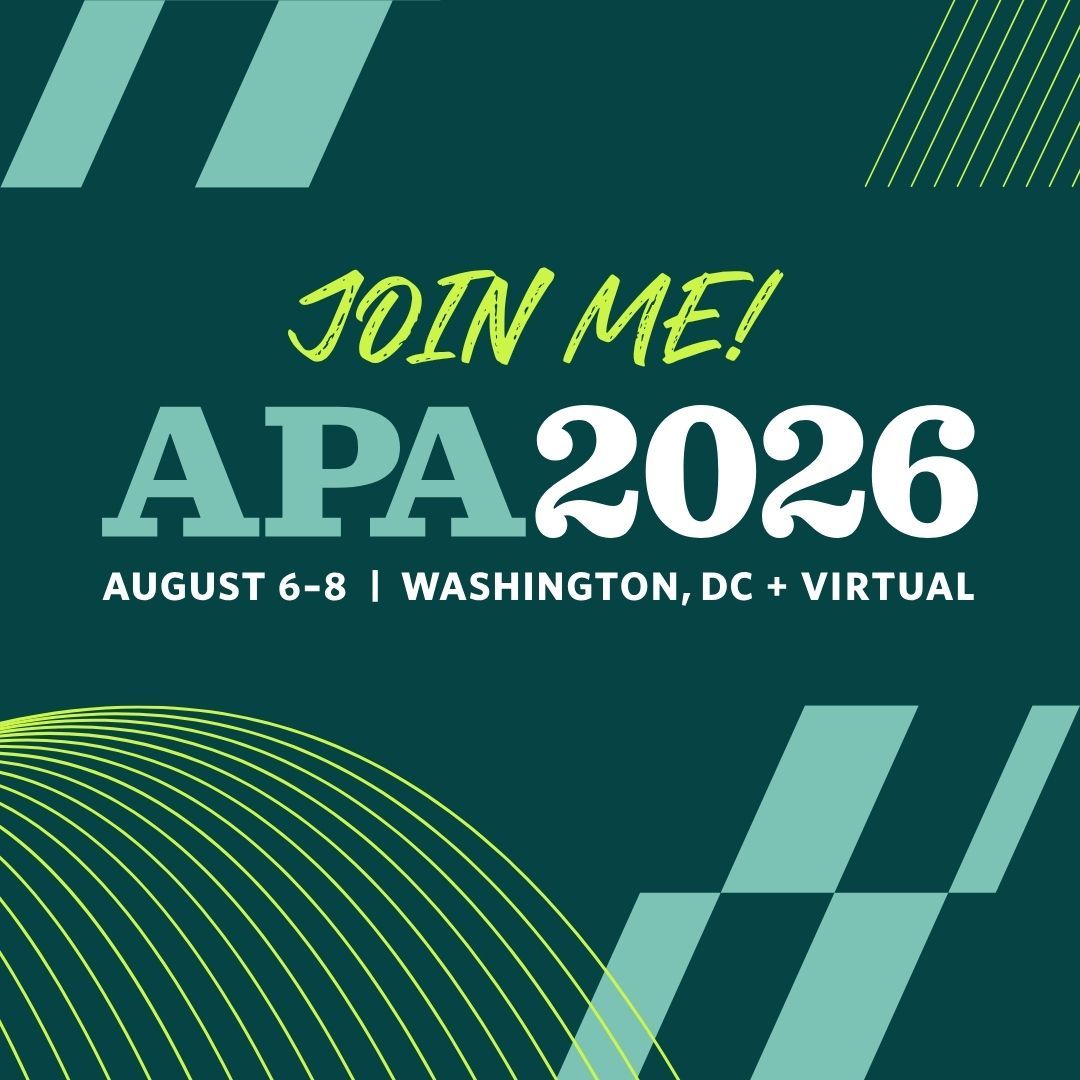
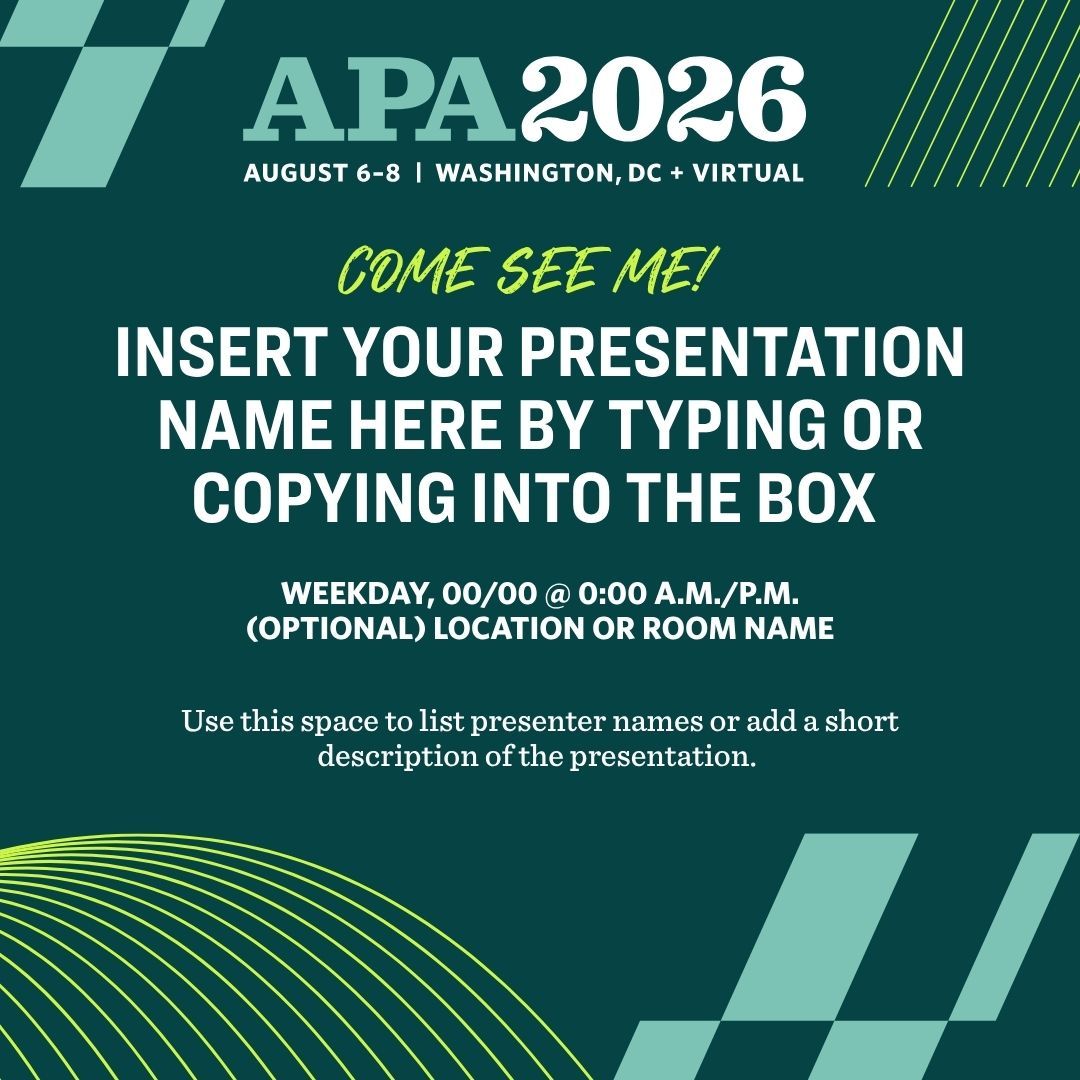
Social posts with images do better than posts that only include text, so be sure to include a graphic. Download this graphic or use use your own image to promote your session. Want to go even more custom? Consider posting your title slide, a snippet from your poster, or even a screenshot of your acceptance email!
... Or Create Your Own!
To use this template, click the 'Open Template' link below. Click 'View Template'. You may be prompted to log in or create a free Canva account. Click 'Open in Editor'. To edit the template, select any text box to replace the existing text.
When you are finished, click the 'Share' button on the right side of the menu bar at the top of the screen. Click 'Download' from the dropdown menu. Then, download as a JPG.
For more information on how to use Canva, view How to Use Canva: A Beginner’s Guide.